
How to Save and Reuse ChatGPT Prompts (Without Copy/Pasting)
Stop rewriting the same instructions. Master prompt reuse in 5 minutes: then save hours every month.
Every ChatGPT user has a ritual: open the chat, find that email template in your notes, paste it in, adjust a few words, hit Enter. If you do this more than twice a week, you're wasting 10+ hours a month on repetition.
This guide shows you the fastest way to build a reusable prompt library and inject any saved prompt into ChatGPT in under one second.
Why Most People Copy/Paste Forever
ChatGPT doesn't have a built-in "save and inject" feature. Native workarounds are slow:
- Bookmarks: Save a chat link, but you still have to manually copy the prompt and write new context every time.
- Notes app: Fast to save, slow to paste. Multi-app switching kills momentum.
- ChatGPT favorites: Only saves completed conversations, not reusable templates.
- Custom instructions: Good for global rules (tone, length), but only one per session and can't be swapped on the fly.
The result: most people manually rewrite the same email template, code prompt, or brainstorm instruction 10-20 times per month. That's real time cost.
The Smart Approach: A Prompt Vault
A prompt vault is a searchable library where you:
- Save any instruction you'll use more than twice
- Organize by category or tag it for quick filtering
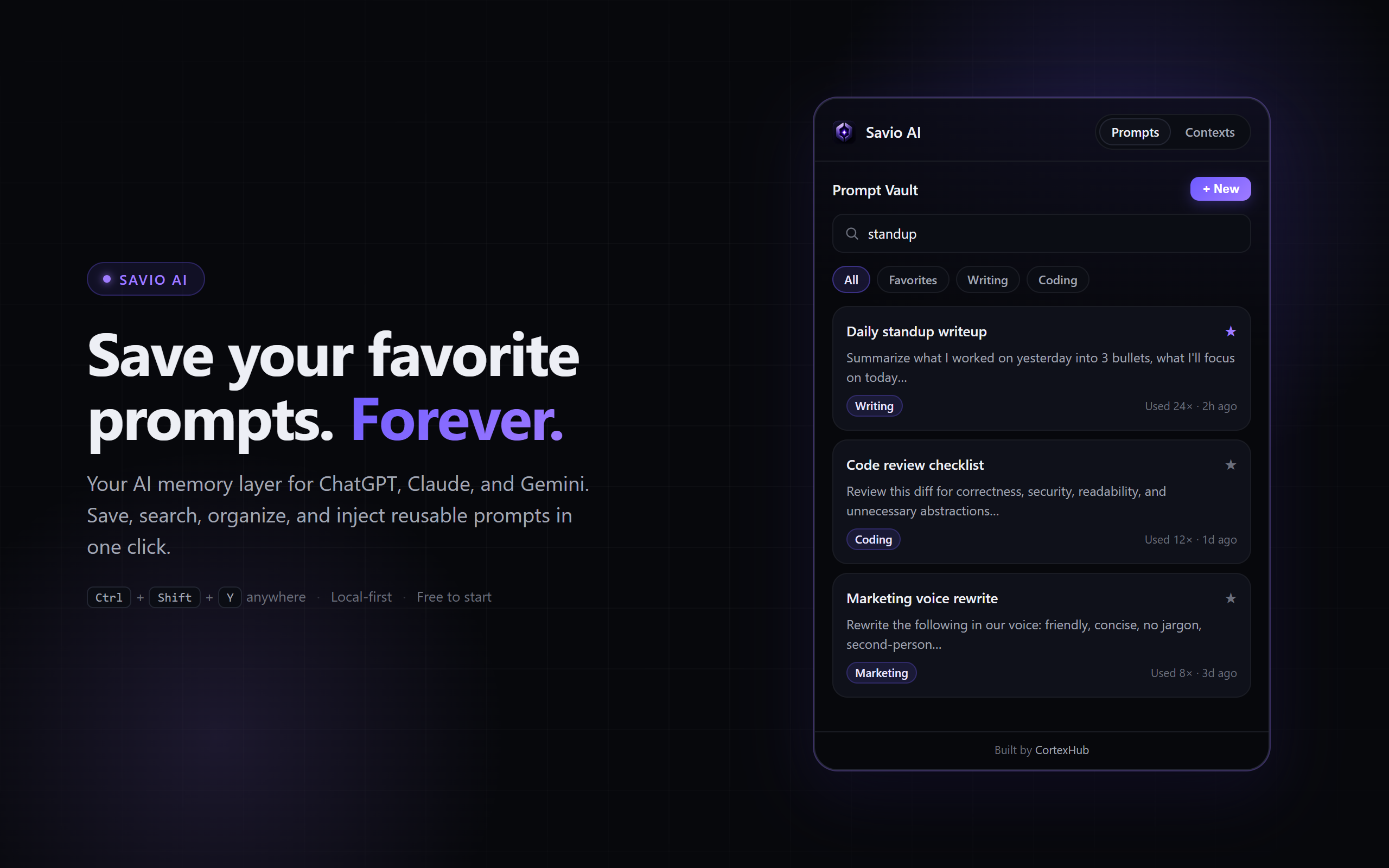
- Inject any prompt into ChatGPT, Claude, or Gemini with one click
- Track usage so you know which prompts actually work
The payoff: instead of hunting through notes or re-typing, you click "Inject" and the prompt appears in ChatGPT ready to use. Total overhead: 1 second per use after setup.
Step-by-Step: Build Your First Prompt Vault
Step 1: Capture Prompts Worth Saving (Ongoing)
Not every prompt is worth saving. Save if:
- You've written it more than once
- It takes longer than 30 seconds to write
- It's specific to a recurring task (email, code review, brainstorm angle)
Examples to save:
- "Email template for cold outreach with [X details]"
- "Code review checklist for pull requests"
- "Brainstorm frame for product naming"
- "Marketing copy angle for B2B SaaS"
Step 2: Organize by Category and Tag
The best vault has 3-4 categories and flexible tags:
| Category | Example Tags | Sample Prompts |
|---|---|---|
| Copywriting | email, cold-outreach, B2B, funky, warm | Email cold outreach, LinkedIn post hook |
| Code Review | backend, frontend, security, refactor | PR checklist, performance audit |
| Brainstorm | naming, positioning, feature-ideation | Product naming frame, feature angle |
| Learning | explainer, tutorial, eli5 | Explain X to a 5-year-old |
Pro tip: Tag by tone (warm, formal, casual) so you can swap context without rewriting.
Step 3: Add Context Profiles for Reusable Rules
A context profile is a set of reusable instructions that prepend any prompt.
Example: "Marketing voice"
- Tone: Warm, conversational, no hype
- Style: Short sentences, punchy verbs, one metaphor max
- Audience: B2B SaaS founders, 30-50 years old
Now when you inject any prompt while "Marketing voice" is active, ChatGPT automatically prepends those rules. Same tone every time, zero extra work.
Step 4: Inject Into ChatGPT in One Click
The goal: save time on the repetitive part.
- Open ChatGPT and your vault side-by-side
- Click "Inject" on your saved prompt
- The prompt drops into the chat box, formatted with your active context
- Customize the specific request (customer name, code file, etc.)
- Hit Enter
Total time: 3 seconds. Traditional copy/paste: 20+ seconds.
Common Prompt Types to Save
| Use Case | Prompt Template Idea | Context Profile to Add |
|---|---|---|
| Cold Email | Reusable hook format + fields for company/product | Tone: warm, casual; Audience: B2B founder |
| Code Review | Checklist (security, perf, readability) as a template | Style: be direct, highlight 3 max issues |
| Content Brief | Structure: headline, 3 benefits, one story arc | Tone: expert but accessible; no jargon |
| Bug Triage | "Given this error, suggest 5 root causes in order of likelihood" | Style: prioritize by impact; assume no context |
| Feature Brainstorm | Constraint-based ideation frame | Tone: wild ideas welcome, focus on user pain |
Tools for Prompt Reuse
Browser extension: The fastest option. Save from ChatGPT directly with Ctrl+S, inject with one click, works offline, no account required.
Web app: Good for organization across devices, but requires switching tabs and copying manually.
Notes + Custom Instructions: Free and simple, but slow for frequent reuse and hard to swap context on the fly.
The Math: How Much Time You'll Save
If you use ChatGPT 5+ times per week:
- Average prompt write time: 45 seconds (brainstorm + edit)
- Reused prompts per week: 3-5
- Time saved per reuse with inject: 40 seconds
- Monthly savings: 8-15 hours
For teams, it's higher. A 5-person marketing team reusing the same email and content templates saves 40+ hours per month.
Getting Started Today
Start small. Pick one category (Copywriting, Code, Learning) and save 3-5 prompts in the next week. You'll feel the friction drop immediately.
Then add context profiles for tone/style, and test the "Inject" flow once. After that, it's automatic.
Ready to Save Your Prompts?
Install Savio AI: a lightweight prompt manager built for ChatGPT, Claude, and Gemini. Free tier: 20 prompts, 3 context profiles, one-click inject. No account required.
Add to Chrome FreeFAQ
Q: Is saving prompts secure?
A: With a local-first tool, yes. Your prompts stay on your device by default. Cloud sync is opt-in for Pro users.
Q: Can I export my prompts later?
A: Yes. Full JSON export is standard so your prompts are always portable.
Q: How many prompts do I actually need?
A: Start with 5-10 in your most-used category. Most people max out at 30-50 total (covering 80% of recurring tasks).
Q: Does this work with Claude and Gemini too?
A: Yes. One-click inject works on ChatGPT, Claude (claude.ai), and Gemini (gemini.google.com).