ChatGPT Keyboard Shortcuts Every Power User Should Know
Master these 18 keyboard shortcuts to navigate ChatGPT faster, format prompts better, and multiply your productivity.
If you're typing the same navigation clicks and chat actions over and over, keyboard shortcuts are your leverage point. Mastering 5-10 of these will save you 1-2 minutes per ChatGPT session - which adds up to 5-10 hours per month if you use ChatGPT daily.
This guide covers official ChatGPT shortcuts, browser shortcuts that work in ChatGPT, and speed-hack workarounds that power users rely on.
Navigation Shortcuts
Ctrl + / (Cmd + /)
Open the Help Menu
Access settings, feedback, shortcuts list, and API docs from anywhere in ChatGPT.
Works on web and desktop
Ctrl + [ (Cmd + [)
Go Back in Chat History
Jump to the previous message in the current conversation. Useful for re-reading context.
Web only
Ctrl + ] (Cmd + ])
Go Forward in Chat History
Jump to the next message. Pairs with back-arrow to navigate conversations.
Web only
Ctrl + Shift + U (Cmd + Shift + U)
Upgrade to ChatGPT Plus
Jump directly to the upgrade page if you're on the free tier.
Web only
Escape
Stop Generating
Halt the current response mid-generation. Works on web and desktop.
Works everywhere
💡 Pro Tip: Map Ctrl+[/] to a single key if you navigate chats frequently. Many power users remap these to arrow keys or mouse buttons for faster history browsing.
Core Chat & Editing Shortcuts
Ctrl + Enter (Cmd + Enter)
Send Message
Submit your prompt without clicking the Send button. Standard across web apps.
Works on web and desktop
Tab
Autocomplete in Chat
ChatGPT sometimes suggests the next word. Press Tab to accept (if available).
Web only, inconsistent
Shift + Enter
Add a Line Break
Insert a new line in your prompt without sending. Useful for formatting multi-line instructions.
Works on web and desktop
->' (Up arrow in input)
Edit Previous Message
Recall and edit your last prompt. Press Up arrow while the input is empty.
Works on web and desktop
Ctrl + A (Cmd + A)
Select All Text in Prompt
Select all text in the chat input box, then copy/delete/replace.
Standard browser
📋 Copy & Format Shortcuts
Ctrl + C (Cmd + C)
Copy ChatGPT Response
Select ChatGPT's response and copy to clipboard. Hover over the response ->' Copy button also works.
Standard browser
Hover + Copy Button
Copy Code Block
Hover over any code block in ChatGPT's response. A "Copy code" button appears at the top-right of the block.
Web and desktop
Hover + Pencil Icon
Edit a ChatGPT Response
Hover over ChatGPT's message ->' pencil icon ->' edit directly in the chat. Re-submit with Ctrl+Enter.
Web only
Ctrl + X (Cmd + X)
Cut Text from Prompt
Cut selected text in the input box. Standard text-editing shortcut.
Standard browser
Ctrl + Z (Cmd + Z)
Undo (in chat input)
Undo the last edit in your prompt input box. ChatGPT doesn't undo messages sent, but your input buffer supports undo.
Works in input only
🚀 Advanced/Power User Tricks
Ctrl + K (Cmd + K)
Command Palette (if installed)
Some ChatGPT browser extensions and desktop versions have a command palette. Try it; if it works, it's a launcher for all shortcuts.
Extension-dependent
Ctrl + Shift + Y (Cmd + Shift + Y)
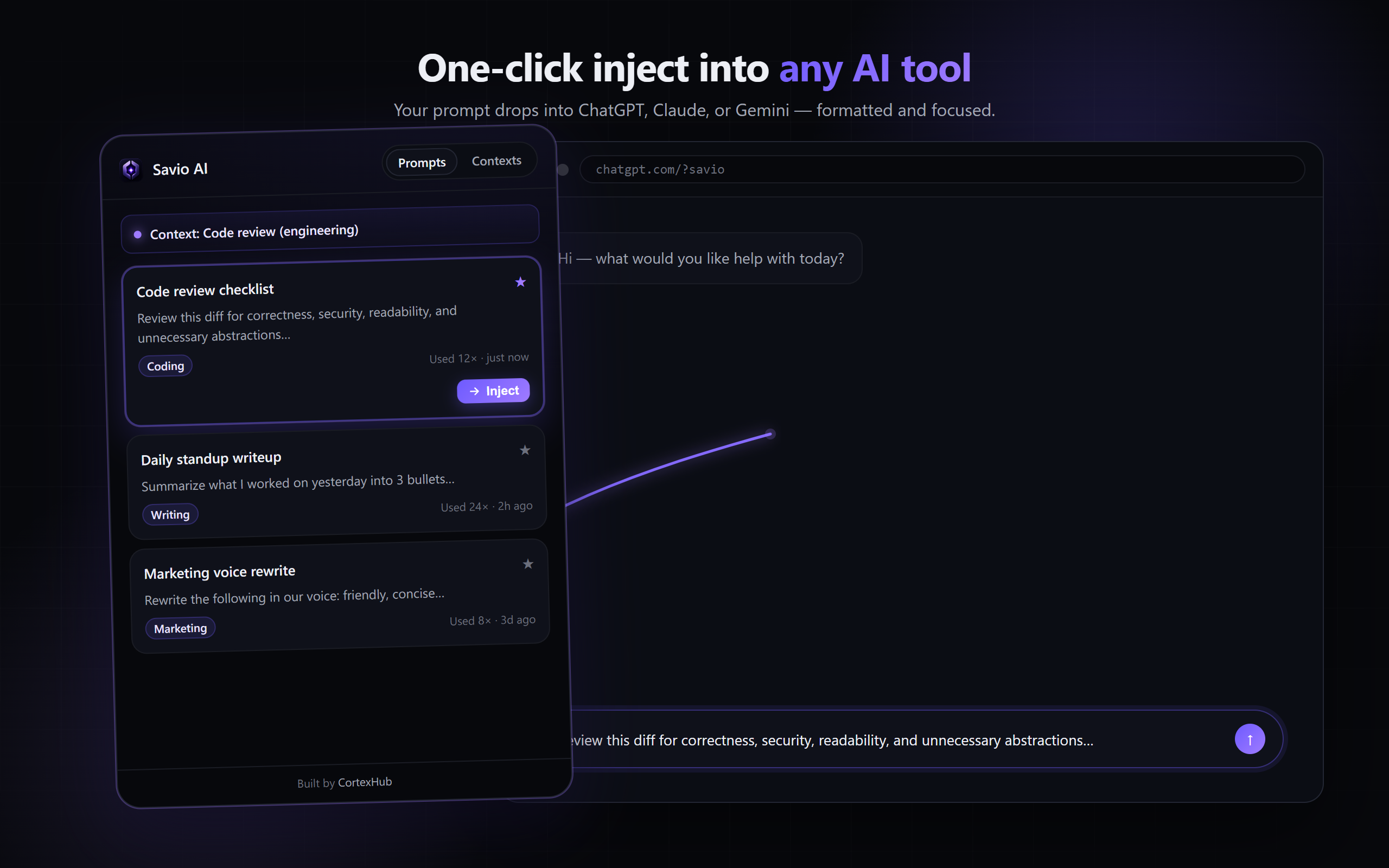
Open Savio AI Prompt Manager
If you install Savio AI extension, this opens the prompt vault from anywhere. Save and inject prompts in 2 seconds.
Savio AI users only
F12 (or Right-click ->' Inspect)
Open Developer Tools
Debug ChatGPT interactions or extract conversation data. Power user tool, not for beginners.
All browsers
Quick Cheatsheet
Top 5 shortcuts to memorize first:
Ctrl+Enter - Send message (faster than clicking)Up Arrow - Edit previous prompt (iterate fast)Shift+Enter - Line break in prompt (format multi-line instructions)Escape - Stop generation (halt long responses)Ctrl+Shift+Y - Open Savio AI (inject saved prompts)
Learning path: Memorize #1-4 this week. Add #5 if you install Savio. Add the rest as they fit your workflow.
Why Shortcuts Matter (The Time Math)
Scenario: You use ChatGPT 5 times per day for work.
- Without shortcuts: ~15 seconds per session (clicking buttons)
- With shortcuts: ~5 seconds per session (keyboard only)
- Time saved per day: 50 seconds
- Time saved per month: ~4 hours
For power users doing 20+ ChatGPT interactions per day, shortcuts + a prompt manager (like Savio AI) save 15-20 hours per month.
Shortcuts on Desktop vs Web
Desktop app (Windows/Mac):
- Slightly faster response times
- Supports Cmd/Ctrl + common shortcuts
- Some web-only shortcuts don't work (like Ctrl+[/])
Web app (chatgpt.com):
- All shortcuts listed above work
- Can install extensions (like Savio AI) in the browser
- Sometimes slower on old browsers or slow connections
Recommendation: Use web if you want extensions. Use desktop if you want speed and full keyboard navigation.
Extending Shortcuts with Extensions
ChatGPT itself has a limited set of built-in shortcuts. But browser extensions can add more:
- Savio AI: Ctrl+Shift+Y to save and inject prompts
- Other extensions: Some add custom shortcuts for themes, export, or bulk operations
If you find yourself repeating the same workflow, look for an extension that supports it.
Master Prompts + Shortcuts Together
Shortcuts make ChatGPT faster. But saving and reusing prompts with Savio AI makes you 10x faster. Combine Ctrl+Shift+Y (open Savio) + Ctrl+Enter (send) and you'll be injecting and running prompts in under 3 seconds.
Install Savio AI Free
FAQ
Q: Do these shortcuts work on mobile ChatGPT?
A: No. Mobile doesn't support keyboard shortcuts (no keyboard by default). Use the touch UI or consider a mobile prompt manager if available.
Q: Can I customize keyboard shortcuts in ChatGPT?
A: Not natively. OpenAI doesn't expose customizable shortcuts yet. But browser extensions (like Savio AI) can add their own shortcuts.
Q: What's the fastest way to prompt ChatGPT?
A: Save your prompts in Savio AI, then: (1) Ctrl+Shift+Y to open Savio, (2) click "Inject", (3) Ctrl+Enter to send. Total time: 2-3 seconds.
Q: Do these shortcuts work in Claude and Gemini too?
A: Mostly no. Claude and Gemini have their own shortcut sets (smaller). Ctrl+Enter usually works. Savio AI shortcuts work on all three.
Q: Is there an official ChatGPT shortcuts guide?
A: Yes: press Ctrl+/ in ChatGPT to see OpenAI's official help menu. It lists some of these shortcuts but not all.